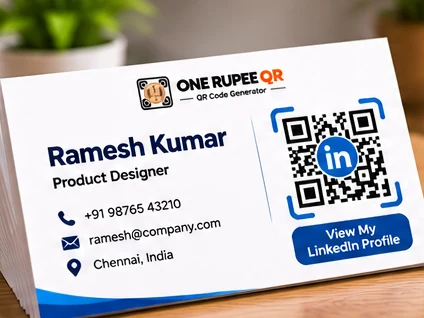
Business cards
Skip spelling your name — contacts scan and see your full profile instantly.
Share your LinkedIn profile or company page with one scan, with your logo in the middle.
Put it on business cards, resumes, badges and slides so new contacts connect while you are still talking.
Choose the destination that fits the conversation.
Skip spelling your name — contacts scan and see your full profile instantly.
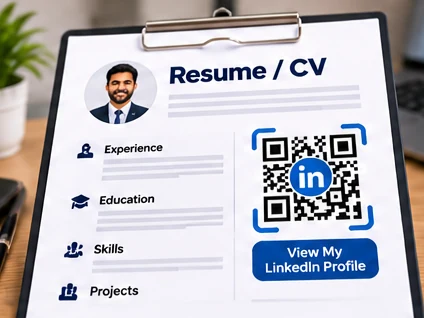
A small code next to your contact details lets recruiters check your recommendations and experience.
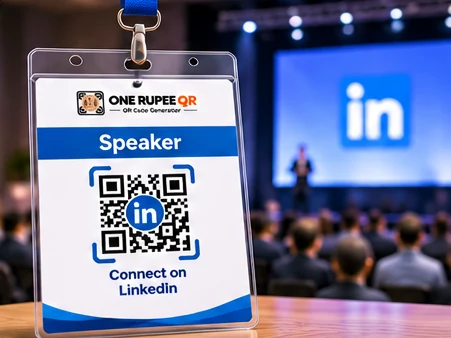
Show the code on your last slide or badge so the audience can connect after the talk.
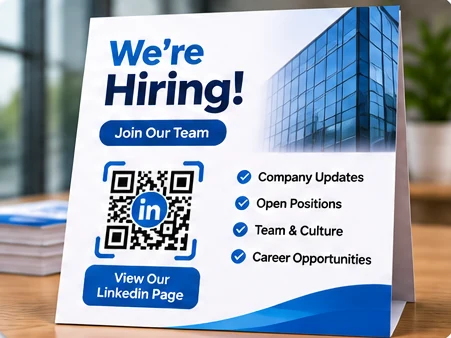
Brochures, proposals and job flyers can link to your company page or a recruiter's profile.
A logo makes your code recognisable, but the code still has to scan. Use a simple logo in the centre, keep the dots dark on a light background, and avoid placing the code over busy photos or patterns.
LinkedIn's name is a trademark. Use your own logo and colours rather than copying LinkedIn's branding, and describe the code plainly — for example “Connect on LinkedIn” next to it.
A company code opens a personal profile
Typing @name always creates a linkedin.com/in/ link. Paste the full linkedin.com/company/ link instead.
Visitors are asked to sign in
LinkedIn may ask people who are not signed in to log in before showing the full profile. Your name and headline usually still appear.
The profile is not found
If you changed your custom profile URL, old links stop working. Update the link — or the destination of a dynamic code.
Copy your profile link, open the Social tab in the generator above, choose LinkedIn and paste it — or type @yourname. Add your logo, test the preview with your phone, then save and download the PNG.
Yes. Copy your company page link, which looks like linkedin.com/company/yourcompany, and paste the full link. Typing @name always creates a personal profile link, so use the full link for company pages.
Use your public profile address, which looks like linkedin.com/in/yourname. A custom public profile URL in your LinkedIn settings makes it shorter and easier to recognise.
Yes. Download the PNG and place it near your contact details. Keep it at least about 2 × 2 cm with a clear margin, and test the printed version before sending or handing it out.
If the LinkedIn app is installed, the link usually opens in the app; otherwise it opens LinkedIn in the browser. LinkedIn may ask visitors who are not signed in to log in to see the full profile.
Yes. Upload your logo and choose your colours, dot pattern, corner style and frame. Keep the code darker than its background so it scans reliably.
Scan the code with an iPhone and an Android phone, signed in and signed out of LinkedIn. Test printed cards or badges at their real size, and scan a projected slide from the back of the room.
Yes, if you created a dynamic code with scan tracking on — change the destination in your dashboard and the printed code follows it. A static code keeps the original link.
Create a LinkedIn QR code with your logo for cards, resumes and events. Your first QR code is free.