
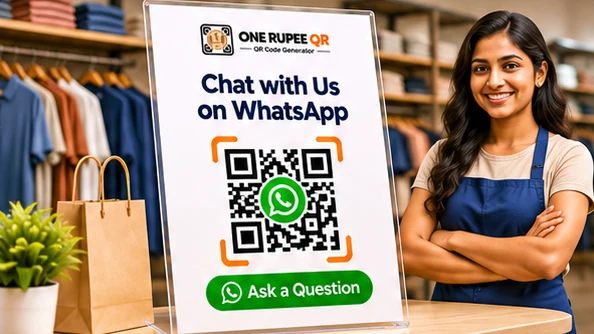
Shops and home businesses
Customers ask about stock, sizes or prices without calling — “Is this available in blue?”
Let customers start a WhatsApp chat with you in one scan.
They don't need to save your number or type it in — the chat opens ready to go, and you can even suggest the first message.
Your QR code opens a WhatsApp chat link. When a customer scans it, WhatsApp opens a chat with your number. If you added a pre-filled message, it appears in the typing box — the customer can edit it and still taps Send themselves, so nothing is sent automatically.
It works for regular WhatsApp and WhatsApp Business numbers. The customer needs WhatsApp on their phone; if it isn't installed, the link opens a page that offers to download it.
Customers ask about stock, sizes or prices without calling — “Is this available in blue?”
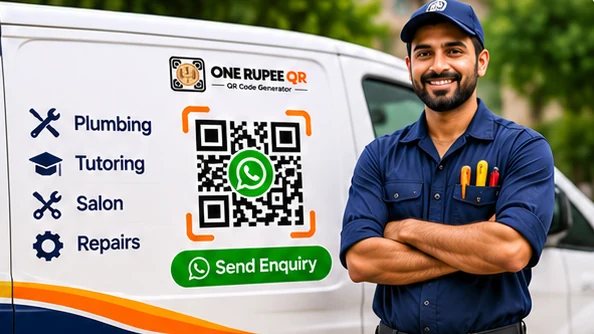
Plumbers, tutors and salons get enquiries with the details already typed.
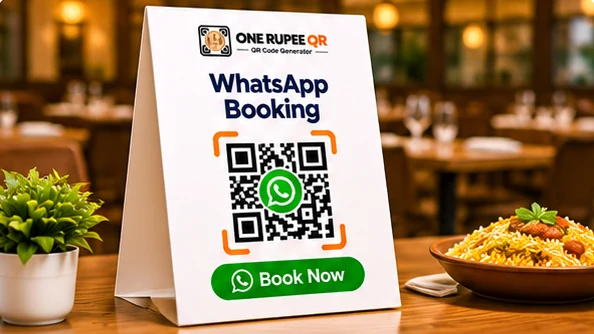
Restaurants and studios take reservations or take-away orders by chat.
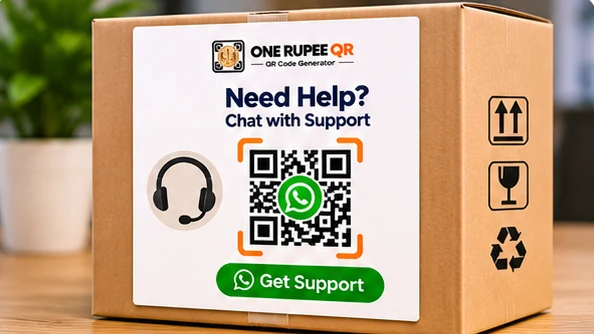
A code on the box or invoice opens a support chat with the order question started.
A pre-filled message saves your customer a step and tells you where the chat came from. Keep it short, polite and specific — one line the customer would happily send as it is.
Good examples: “Hi, I'd like to book a table for tonight.” · “Hello, is this item still available?” · “Hi, I need help with my order.” Use a different message for each placement — counter, packaging or flyer — so you know which one brings the most chats.
“Phone number shared via url is invalid”
Remove the +, spaces, dashes and any leading zero, and make sure the country code is included.
The chat opens but the message is missing
Check the link uses ?text= after the number. Create the code again and test it before printing.
It opens the wrong person
Double-check every digit. If the number changes later, a dynamic code lets you update the link without reprinting.
Write your number with the country code and no + or spaces, open the Social tab in the generator above, choose WhatsApp and paste wa.me/yournumber — or type @ followed by your number. Test it with WhatsApp, then save and download the PNG.
Yes. Use the format wa.me/yournumber?text=your message and paste the whole link. When someone scans, the message appears in their typing box; they can change it and still tap Send themselves.
Yes. Print the code on packaging, invoices or your website, ideally with a pre-filled message such as “Help with my order”. Customers start the chat; your team replies from WhatsApp as usual.
Yes. Chat links work the same way for WhatsApp and WhatsApp Business numbers — just use the business number in international format.
No. Scanning the code opens a chat with your number directly, without adding it to their contacts. They do need WhatsApp installed on their phone.
Yes — it is one of the most popular uses. Print it at least 3 × 3 cm on a counter stand with a line like “Chat with us on WhatsApp”, and test the printed version before displaying it.
A static code keeps the old number, so you would need a new code. A dynamic code, created with scan tracking on, can be pointed to the new link in your dashboard.
Scan the code with a phone that has WhatsApp and one that does not. Check the correct number opens, the pre-filled message appears if you added one, and the printed code scans at its real size.
Create a WhatsApp QR code for your counter, packaging or business card. Your first QR code is free.