
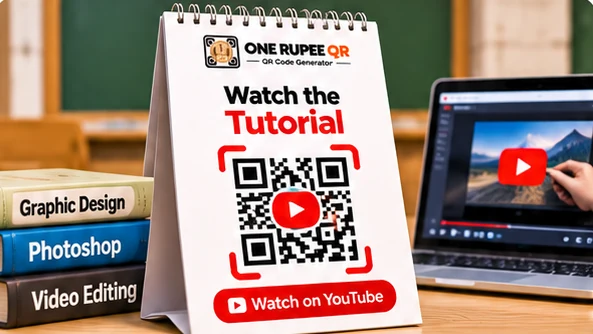
Tutorials
Printed guides and classroom handouts can link to the video that shows each step.
Send people straight to your YouTube channel or one specific video with a single scan.
Ideal for tutorials on packaging, demos in manuals and highlights on event posters.
Any YouTube link that opens in a browser works.
Under a video, tap Share and choose Copy link. For your channel, copy the address of your channel page.
Open the Social tab in the generator above, select YouTube and paste the link. For a channel you can type @yourchannel.
Add your logo and colours, keeping strong contrast with the background.
Scan the preview, check the right video or channel plays, then save and download the PNG.
Printed guides and classroom handouts can link to the video that shows each step.
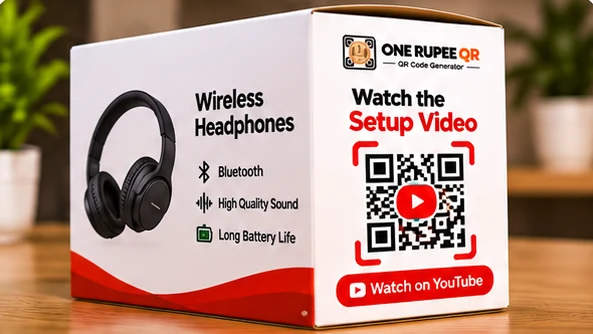
A code in the box opens a setup or assembly video, often clearer than pages of instructions.
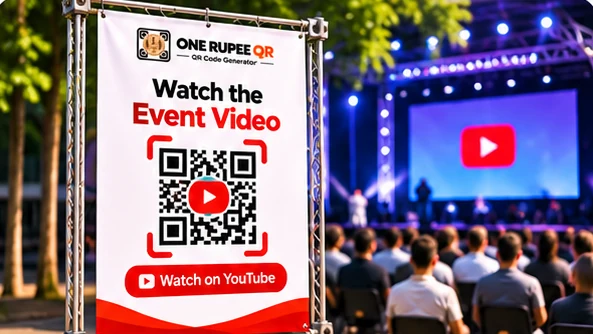
Posters and screens can link to a trailer, a speaker's talk or the event highlights.
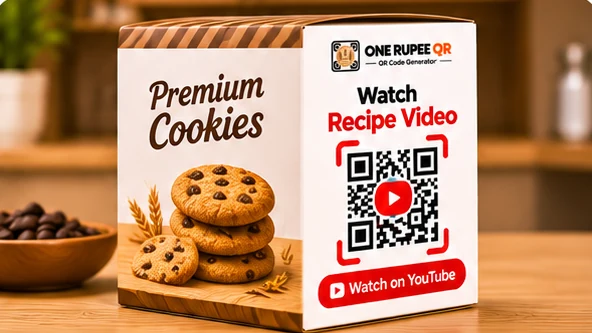
Recipes, care tips and brand stories come alive when shoppers can watch them.
Pick by what the person needs at the moment they scan.
| Channel QR code | Video QR code | |
|---|---|---|
| Opens | Your channel page | One specific video |
| Best for | Growing subscribers | Answering one question |
| Typical place | Business cards, posters | Manuals, packaging, handouts |
| Stays useful | As long as the channel exists | As long as the video stays public or unlisted |
| When content changes | Always shows your latest videos | Use a dynamic code to switch videos |
“Video unavailable” after scanning
The video may be private, deleted or blocked in the viewer's country. Use a public or unlisted video, or point a dynamic code to a new one.
The video starts at the wrong moment
A link copied with a start time keeps it. Copy the link again without a start time, or choose the moment you want in YouTube's share options.
The channel link opens the wrong channel
Check your @handle in YouTube Studio and paste your channel's full address rather than typing it from memory.
A public video can be found and watched by anyone. An unlisted video does not appear in search or on your channel, but anyone with the link — including your QR code — can watch it. That makes unlisted videos ideal for manuals and customer-only guides.
A private video only plays for people you invite, so it will not work for a printed QR code.
Copy your channel address, open the Social tab in the generator above, choose YouTube and paste it — or type @yourchannel. Add your design, test the preview with your phone, then save and download the PNG.
Yes. Tap Share under the video, choose Copy link and paste that link into the generator. Scanning the code opens that video.
A channel code opens your channel page so people can subscribe and browse. A video code opens one video, which is better when the scan should answer a single question, such as how to assemble a product.
Yes. Print it where people look for help, add a short label such as “Watch the setup video”, and test a printed sample. Make sure the video is public or unlisted so it plays for everyone.
Yes. Without the app, the link opens the video on YouTube in the phone's browser. With the app installed, it usually opens in the app.
For a video, tap Share under it and choose Copy link. For a channel, open your channel page and copy its address, which looks like youtube.com/@yourchannel.
Yes, if you created a dynamic code with scan tracking on — change the destination in your dashboard and the printed code opens the new video. A static code keeps the original link.
Scan the code with an iPhone and an Android phone, with and without the YouTube app, and check the right video plays. Confirm it is not private or age-restricted for your audience, then test a printed sample.
Create a YouTube QR code for your channel or a single video. Your first QR code is free.